ELKA SOFT
VOICEMEETER
FX HOST
Adding VST plugins to VoiceMeeter
channels and busses
A powerful VST-plug-in Host – exclusively made for Voicemeeter
- The perfect addition to VoiceMeeter
- Free and open source app
- Easy to setup and use
- Stand alone VST host. You don’t need an extra DAW
- Supports all VST plugins
- Simple routing from VoiceMeeter channels & busses
- Real-time audio processing (low latency)
- Add high-quality plugins: Equalizers, Reverb, Compressor, Autotune …
You need:

Windows

VoiceMeeter

ELKA FX Host & VST plugins
Load inside the ELKA app.
Imagine! FX Host provides a unique feature:
The app is able to insert VST plug-ins on any Input of Voicemeeter. Or any output BUS. Or both!
How does it work
A standalone VST Host
VoiceMeeter FX Host is a lightweight, free Windows app designed specifically to process live audio through VST plugins without needing a heavy Digital Audio Workstation (DAW).
You need to install it besides VoiceMeeter.
A free VoiceMeeter Extension
The app acts as an external insert/FX loop for VB-Audio’s VoiceMeeter (Standard, Banana, or Potato). It can insert itself into the audio path of VoiceMeeter’s
- channels strips,
- between channel strips and output busses
- output busses.
The application is using the Voicemeeter Audio callback API to manage the internal audio routing in a much more flexible way than a usual ASIO Host.
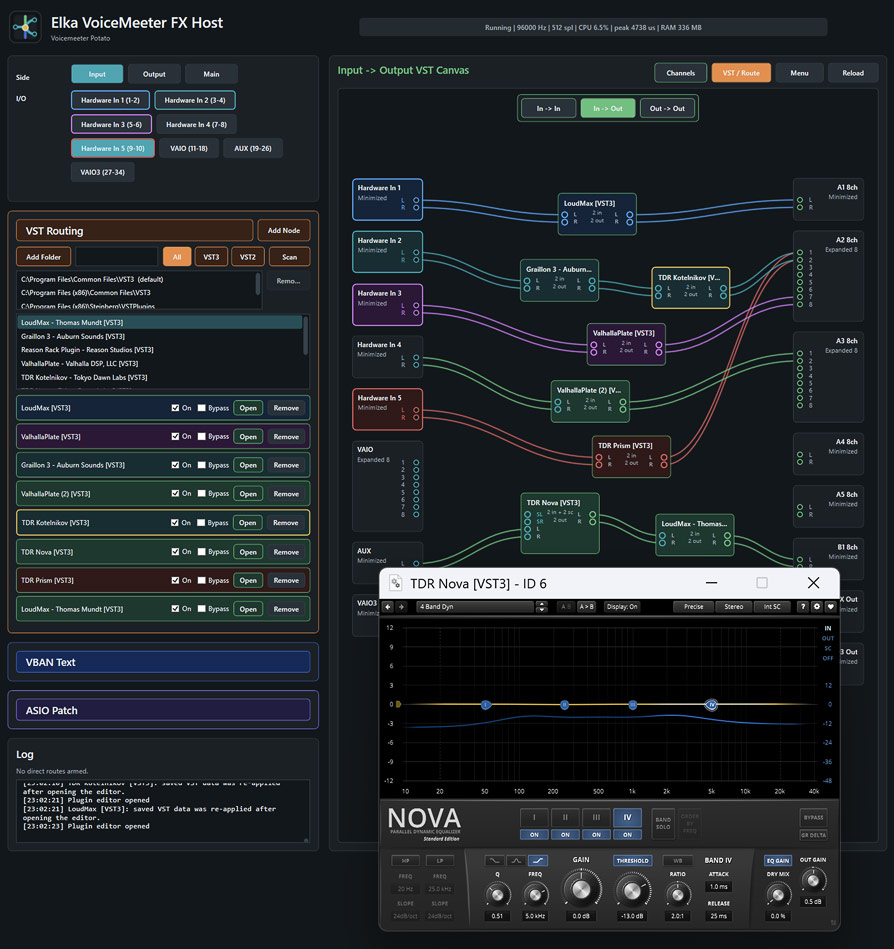
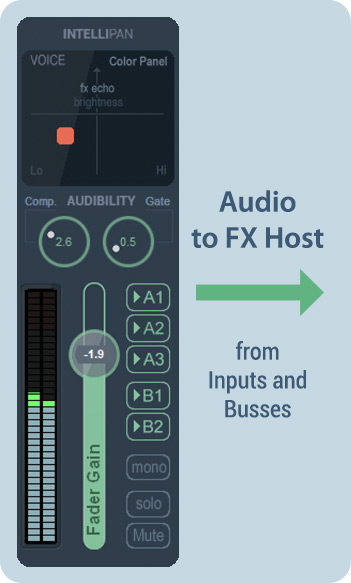
1
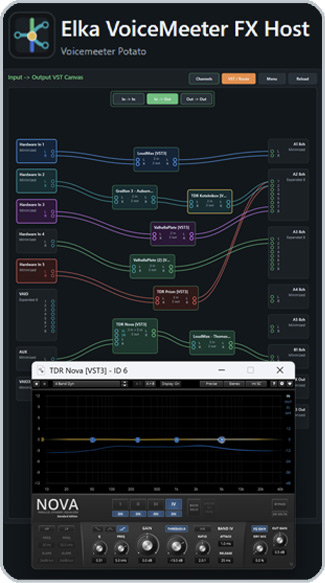
VoiceMeeter sends the audio to ELKA FX Host, which can load any VST plugins and process this audio.
2
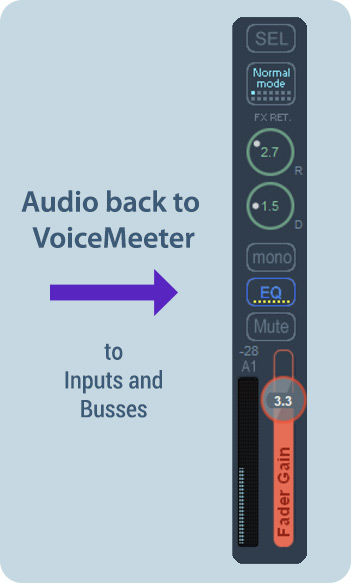
You also decide where the processed audio should be routed back into VoiceMeeter.
3
You get the full flexibility of VoiceMeeter with its internal routing and can use any external VST effect directly in VoiceMeeter’s signal flow.
Install And Start
- Install and start VoiceMeeter.
- Install Elka VoiceMeeter FX Host with the signed installer, or extract the portable ZIP and run Elka.VoiceMeeterFxHost.App.exe.
- Confirm the status line shows the detected sample rate and block size.
- Open the in-app log if VoiceMeeter, the callback, or a plugin does not load.
The compact direct EXE and portable ZIP require the .NET 8 Desktop Runtime. The ZIP keeps the framework-dependent files together and is useful when testing plugin hosting without installing the app.
Tray And VoiceMeeter Button
When tray behavior is enabled, the notification-area menu provides Open and Shutdown.
The option “Start with Windows” registers the current executable for the current Windows user.
“Start to Tray” avoids showing the main window whenever the app is launched, whether Windows starts it automatically or it is opened manually.
Supported VoiceMeeter versions can show a custom FX Host button. The button opens or restores the app and is removed during a normal FX Host shutdown.
Command-line startup also supports tray/hidden launch arguments used by external launchers.
The Routing Canvas
Choose A Callback Area
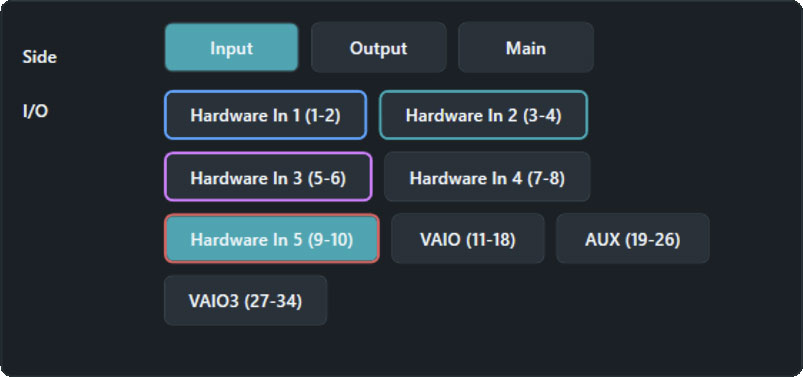
The Side buttons select the VoiceMeeter callback area shown by the app:
Input works with hardware and virtual input insert channels.
Output works with VoiceMeeter output buses.
Main exposes the wider input-to-output callback canvas.
Changing the visible side does not remove routes already running on another side. The I/O buttons choose the hardware input, virtual input, or bus whose channel controls are shown.

When ASIO Patch is running (see below), it owns the VoiceMeeter Insert ASIO driver and the normal VoiceMeeter callback is disconnected. Output, Main, In -> Out, and Out -> Out are unavailable until ASIO Patch is stopped.
Scan and Add VSTs to the Canvas
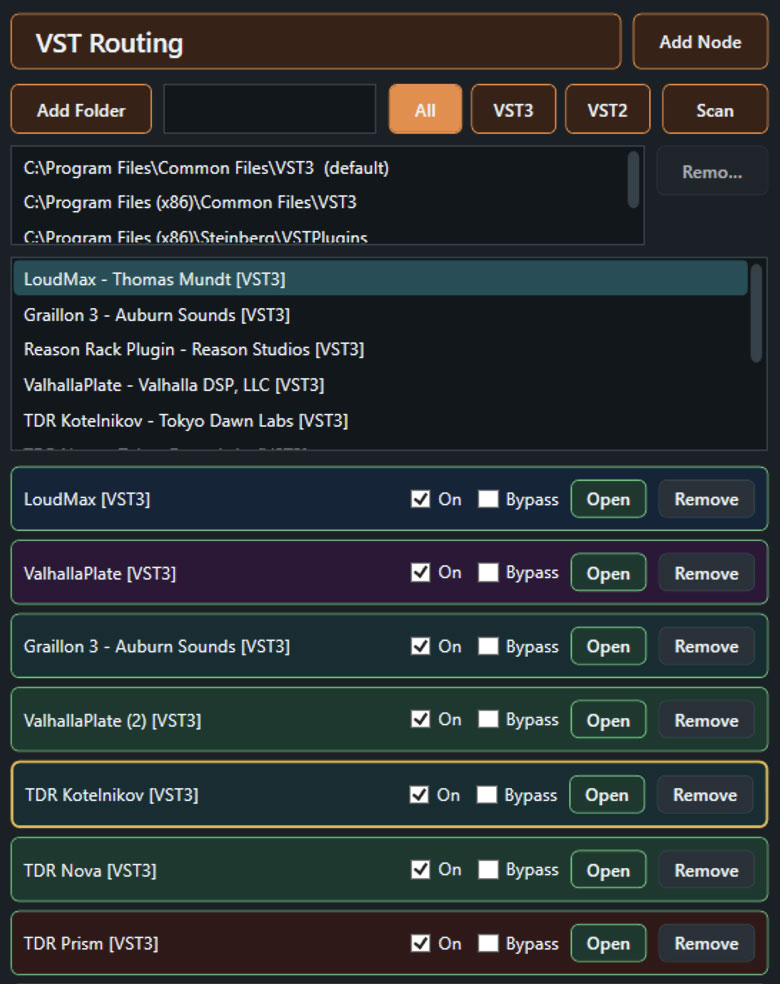
Open VST Routing to use the plugin browser and canvas.
- Click Scan to scan the standard Windows VST locations.
- Use Add Folder for additional VST3 folders or VST2 folders in a VST2-enabled build.
- Type in the search field to filter the list by plugin name.
- Add the highlighted plugin with Enter, double-click it, drag it onto the canvas, or use Add Node.
The custom folder list is saved. A later scan adds new plugins and removes entries whose files no longer exist. The browser shows the plugin name and format without performing a heavy full plugin load for every list item.
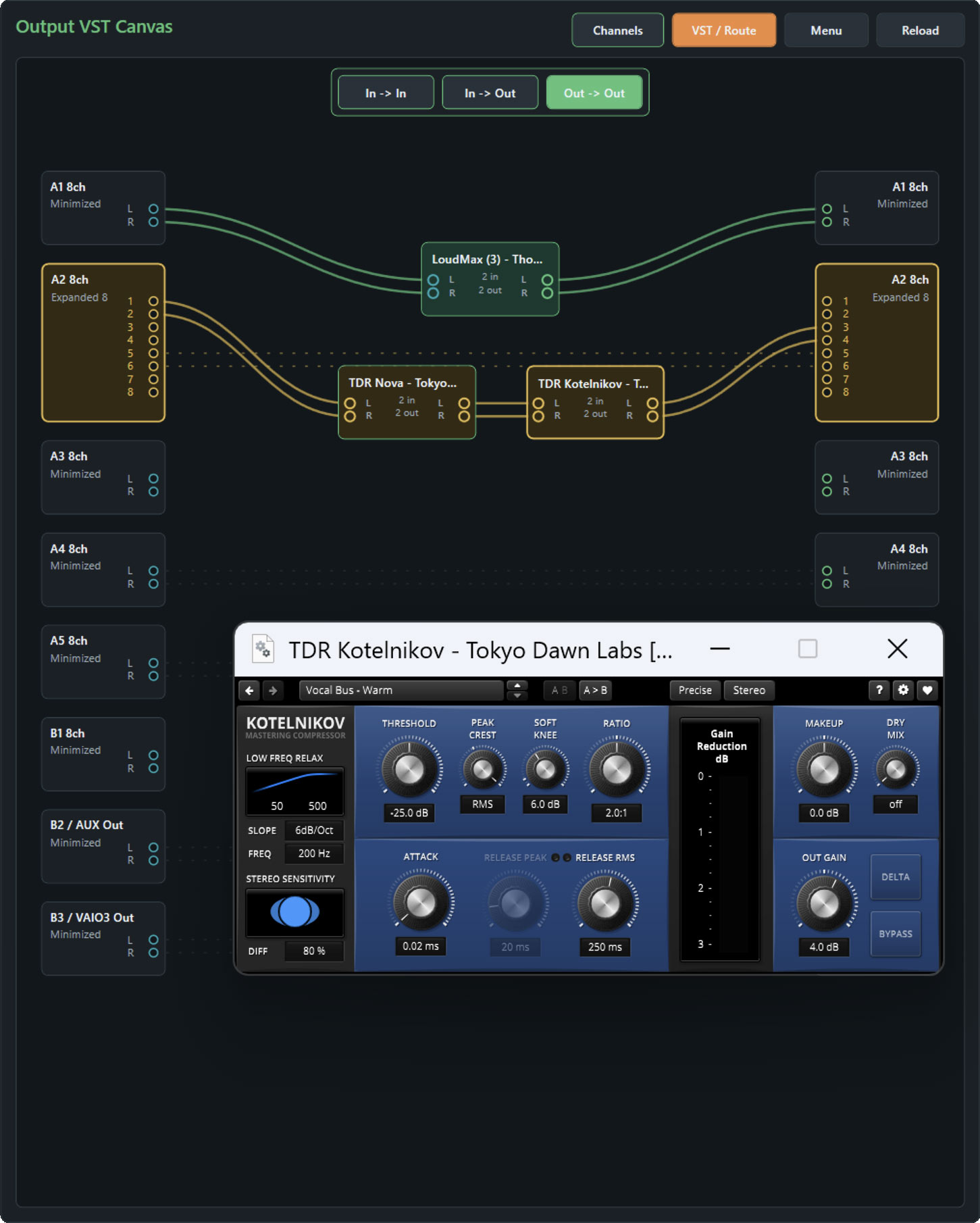
To add a plugin to the canvas, select the callback area you want to add the plugin (e.g. In to In, In to Out …). Double click a plugin from the VST list or drag and drop the plugin from the list to the canvas. Place the plugin with your mouse at the position, which best fits your routing.
Plugin loading can take longer when a vendor performs licensing or online authorization. The in-app log reports the current operation.
Route VoiceMeeter channels to VSTs and back to VoiceMeeter
Audio on the canvas is drawn from left to right:
source endpoint -> processing nodes -> destination endpoint
Left endpoint cards represent audio arriving from VoiceMeeter. Right endpoint cards represent the return point. VST nodes and VST groups sit between them.
When a source channel is claimed by a VST route, its normal audio on that path is stopped until the graph reaches a valid destination. Therefore this is intentionally silent:
source -> VST -> no destination
Complete the chain to hear the processed audio:
source -> VST -> destination
For stereo, connect both L and R. A mono connection affects only the pin you connected.
Connect A VST
Basic stereo route:
- Add the VST.
- Drag the source L pin to the VST L input.
- Drag the source R pin to the VST R input.
- Drag the VST L output to the destination L pin.
- Drag the VST R output to the destination R pin.
VST-to-VST chains are supported (VST > VST > VST > VoiceMeeter):
source -> noise reduction -> EQ -> compressor -> destination
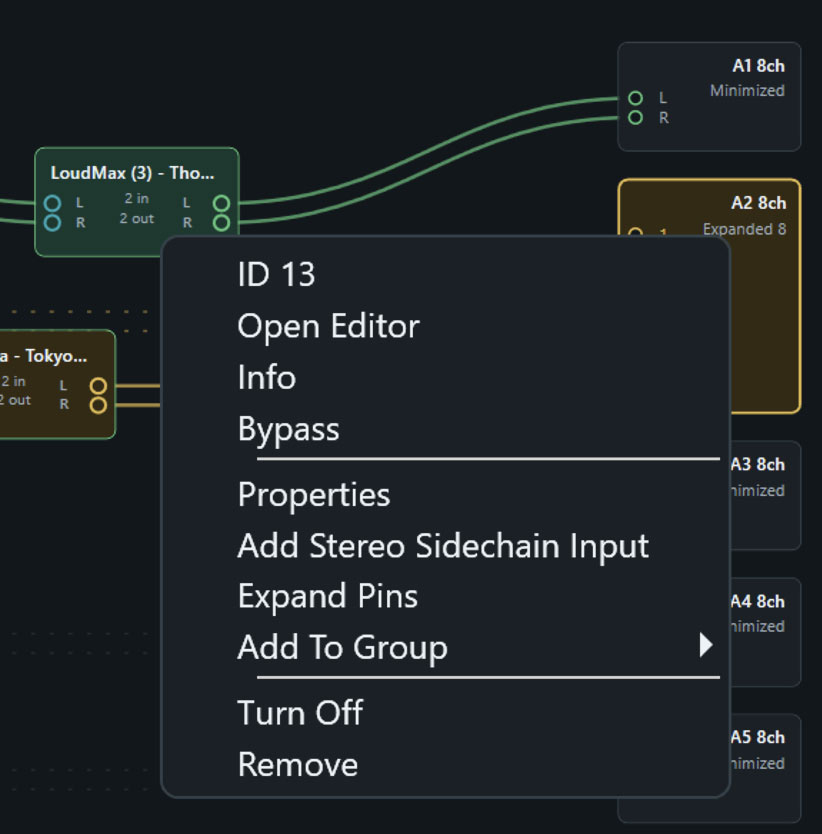
Cables remain attached while nodes and groups move. Select a cable and press Delete, or right-click a connected pin and use Disconnect Cable from the context menu.
Use only one engine mode at a time. If VoiceMeeter changes sample rate or block size, the ASIO host follows the driver format and restarts its audio path when required.
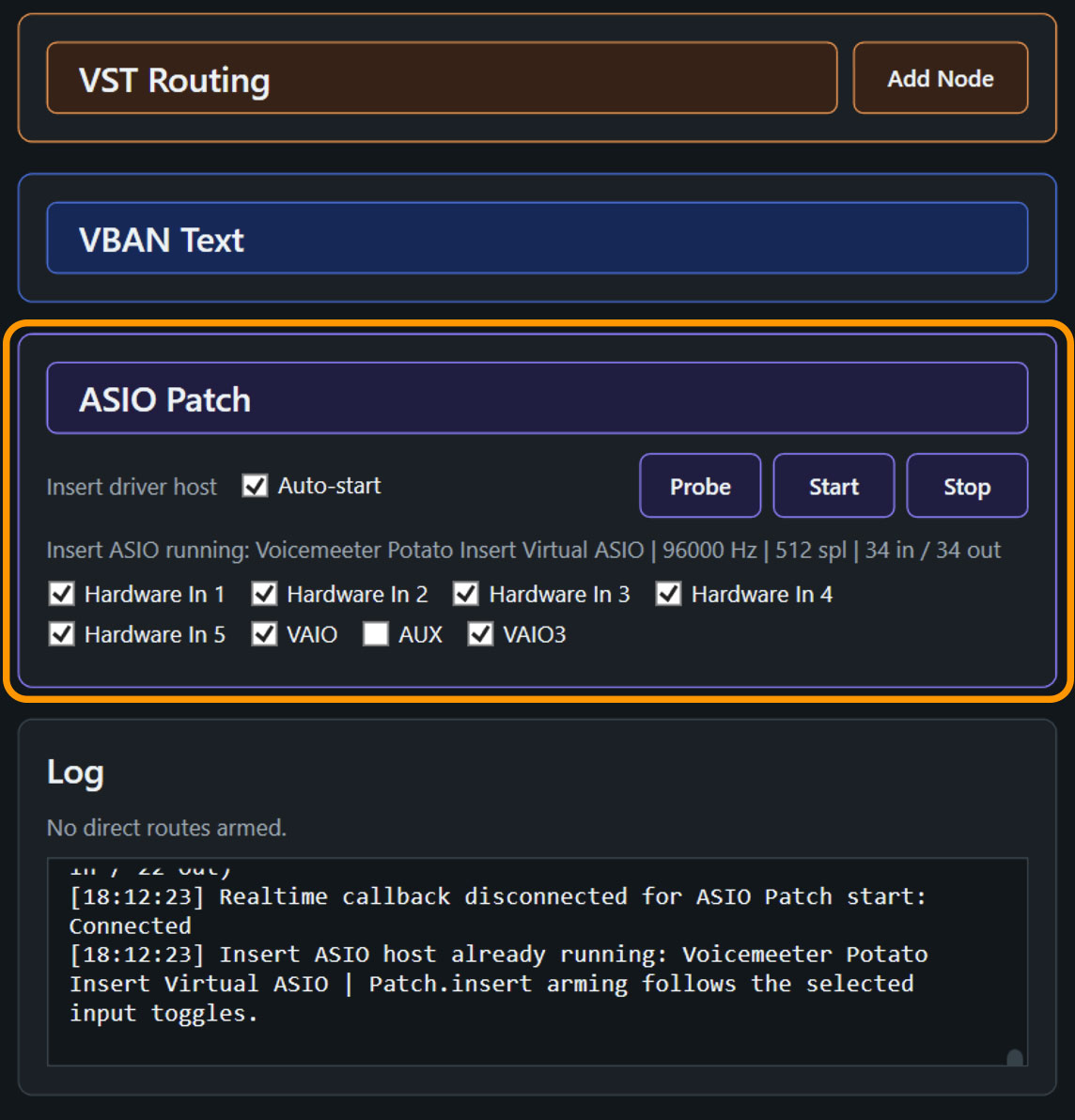
ASIO Patch
- Expand ASIO Patch.
- Use the Probe button to show the compatible Insert ASIO driver.
- Select the input sections that should have Patch.insert enabled.
- Click Start.
Starting ASIO Patch fully disconnects the normal callback before opening the Insert ASIO driver.
Stopping it closes the driver and returns the app to normal callback operation.
The input toggles reflect the live VoiceMeeter Patch.insert state, whether changed in the app or VoiceMeeter System Settings.
Use only one engine mode at a time. If VoiceMeeter changes sample rate or block size, the ASIO host follows the driver format and restarts its audio path when required.