


VOICEMEETER UPDATES SEPTEMBER 2026
the central hub
for Windows audio management
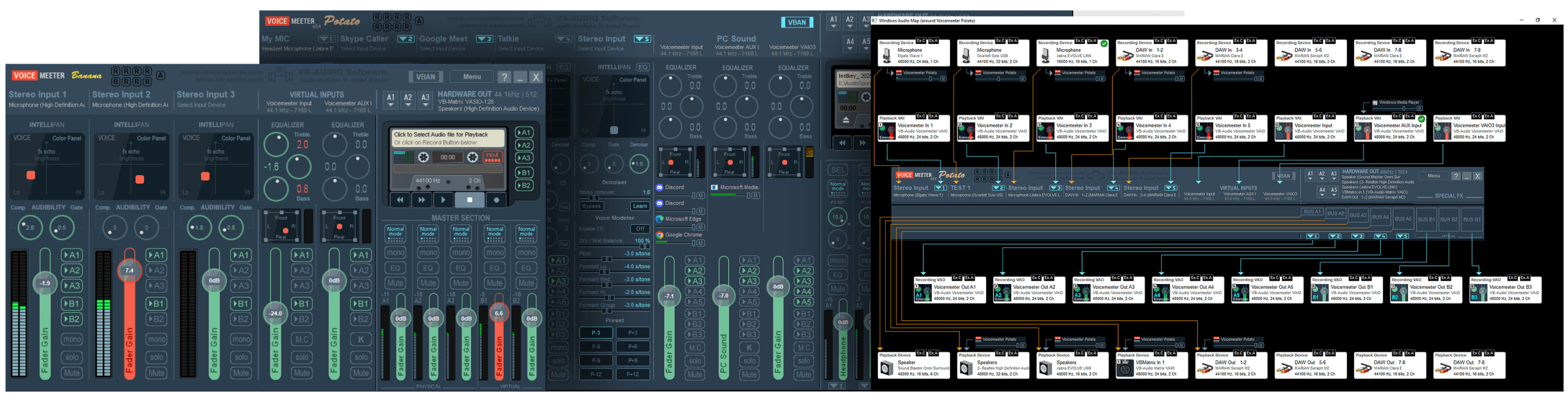
VoiceMeeter 2026
Managing Windows Audio
With all the new features, bug fixes and improvements, the September 2026 update is not just another Voicemeeter version.
Especially with the new Windows Audio Map, Voicemeeter is becoming the central hub for Windows audio management, the essential tool for the daily audio life. After ten years of continuous development, the new milestone is the impressive result of a close collaboration between VB-Audio and its users, and the foundation for the next decade of innovation.
Fixes / New Features in this update
Release Versions 3.1.3.0 / 2.1.3.0 / 1.1.3.0 (September 2026)
New Features
- SLIDER GAIN: Edit value by CTRL+Click (and historic Right Click).
- Moving slider by mouse is made with a fixed precision of strictly 0.1 dB.
- SUB MIX: Edit value by CTRL+Click
- ACTIVATION LOG file new format T20 is now storing information about BIOS.
- REMOTE API: Command.Show = 2; to set Voicemeeter windows foreground.
- VAIO_ControlPanel: from Latency menu or Audio Map Menu, open right control panel under Win7.
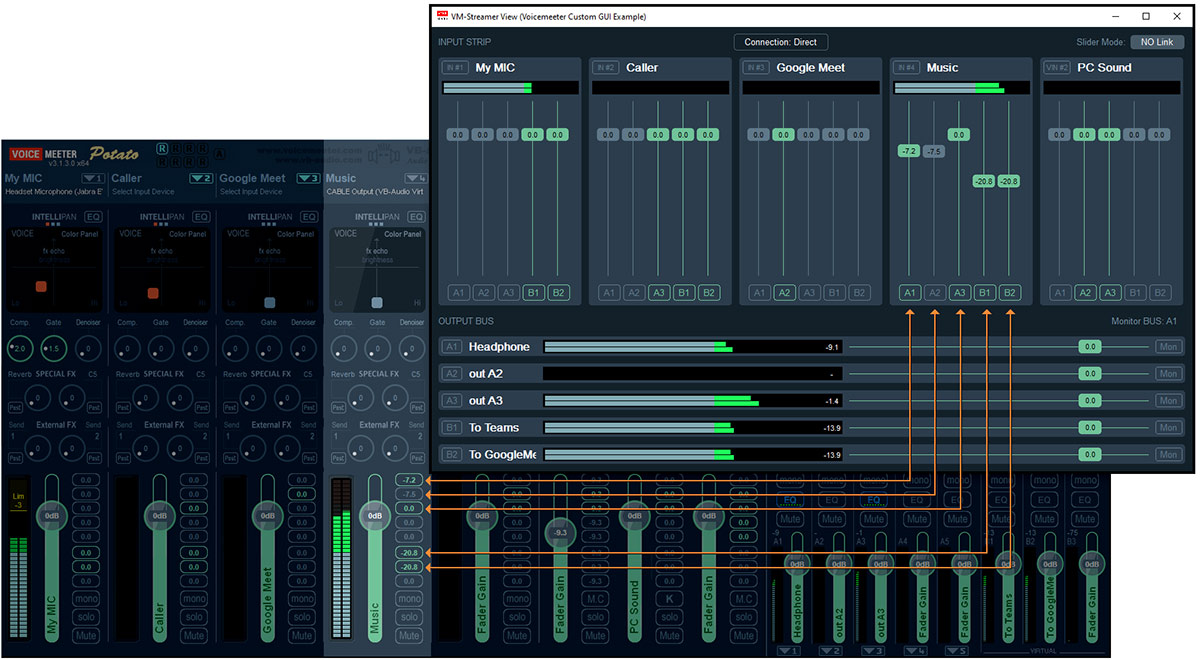
- POTATO: Bus Assignation buttons can be used to show the level per layer (sub mix level). Right Click to swap to level view or BUS assignation view. Use CTRL+Wheel to change the sub mix value (layer gain).
- VBAN: Voicemeeter was not able to process several text command requests at once (creating a possible reaction delay on VM-Streamer View for example).
- AUDIO MAP: Right click on Audio Map Button opens a contextual menu to open different windows audio settings dialog box .
o Windows Sound Settings
o Windows Apps Volume and Device Preferences
o Windows Privacy for Microphone
o Windows Sounds Playback Devices
o Windows Sounds Recording Devices - BUS Peak Meters: display bug could show remaining signal around – 80dB. Now fixed.
- MACRO BUTTONS: Lock Edit Function (in system menu) allows to disable the Right Click to Edit a button.
- MACRO BUTTONS: Now offers 2x MIDI input devices in system menu to get MIDI messages from devices not used by Voicemeeter (or to use MacroButton with MIDI controller without Voicemeeter).
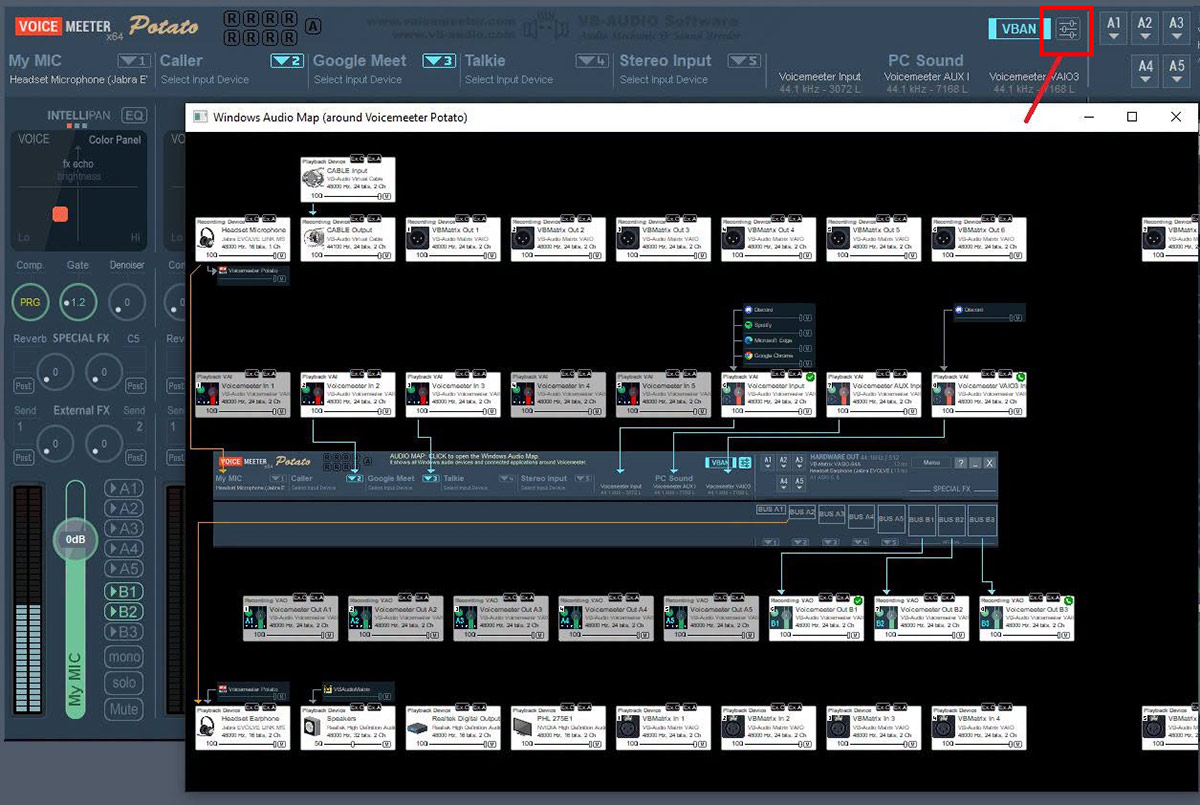
- VOICEMEETER: Now offers a small button to open the Windows Audio Map, just beside the VBAN button.
- MIDI MAPPING: re-label Limit BUS.
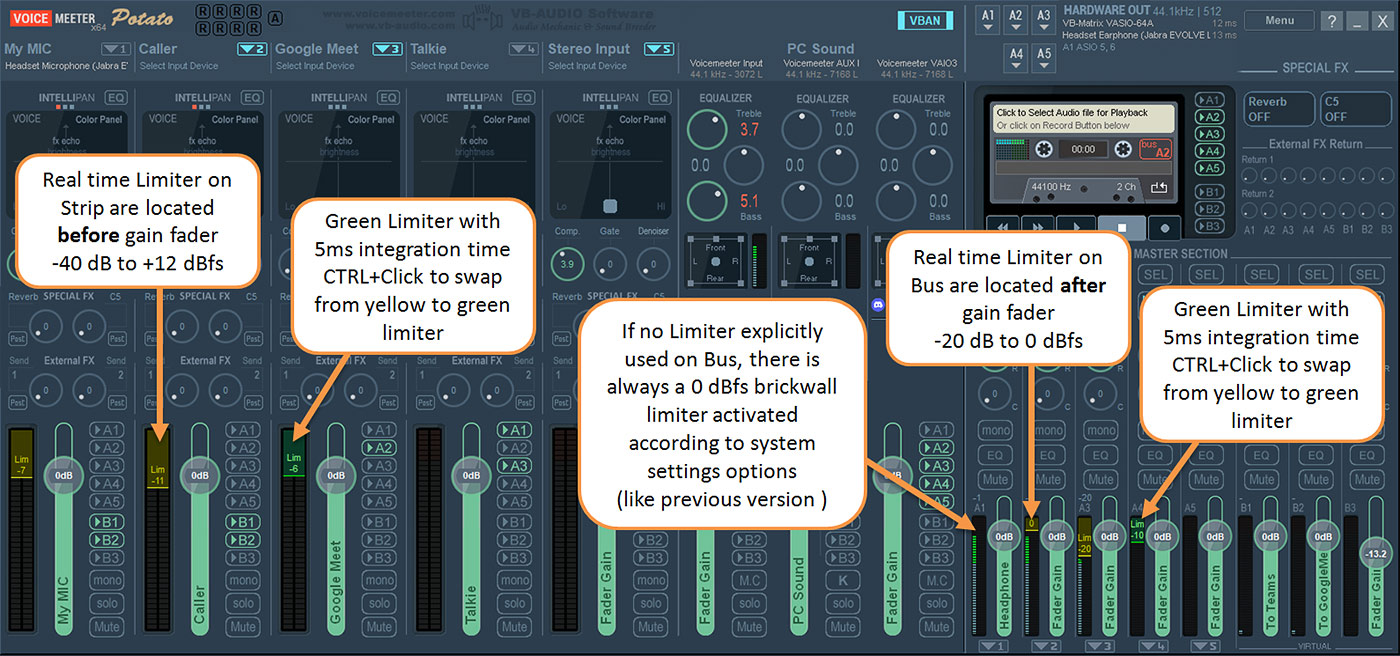
- LIMITER: Keep previous limiter algorithm on Strip and BUS (without latency). The New Limiter (with 5 ms latency) will be called the Green Limiter and can be activated by CTRL+Click (to swap from yellow to green limiter). Green option could be set by the API thanks to following instructions:Code: Select allOption.LimTypeIn[0] = 1/0;
Option.LimTypeOut[0] = 1/0; - API: CUSTOM BUTTON: new API function to create 2 custom buttons on Voicemeeter Potato main screen and be notified by WM_COMMAND when user click on it.
- VAIO Sync Mode was displayed in yellow, while it is expected to be displayed in yellow only in STRICT mode when main stream buffering is above 10ms (meaning it could not work perfectly if the main buffer size is more than 10ms).
AUDIO MAP: refresh only app volume zone when application is changing it’s name (instead of doing a full screen refresh).
AUDIO MAP: Display blue “S” if the Spatial Sound option is enabled.
NEW LIMITER: Strip Limiter has been replaced by a new algorithm to remove attack noise (but it introduces 5ms latency for integration time). This Limiter has also been implemented in the Tape Recorder (to guarantee recording without peak noise). This limiter is also now available on BUS: Like for strip; click on peak meter to drag it to wanted value (0 dB to -20 dB).
Code: Select allBus[i].limit = -20 to +12 (always 0 if above 0dBfs, +12 = OFF) - VAIO DRIVER: revision to fix a BSOD due to lack of system memory.
- MIDI MAP: revision of the control update process, add Mackie mode for coder (right click on MIDI code to get contextual menu. Add BUS Limiter control in MIDI mapping.REMOTE API: Option.MonitorOnSel could not be updated correctly when using it as remote instruction.
- MACRO-BUTTONS: was setting System Timer Resolution to 0.5 instead of 1ms. This was not expected so has been fixed.
- MACRO-BUTTONS: To check/uncheck VBAN-Frame stream was requiring an engine restart to really start or stop the video stream.
- MACRO-BUTTONS: trigger level could not be consistent when in/out selection was related to a non existing strip or bus (e.g. in#6 on Voicemeeter Banana).
- MACRO-BUTTONS: PUSH button now supports KEY DOWN repetition (KEY HOLD).
- MACRO-BUTTONS (1.1.3.2): correct regression in shortcut key management.
- MACRO-BUTTONS (1.1.3.3): New check box “key Repeat” for PUSH button (2x position button can repeat ON/OFF status on key hold by nature).
- SETTINGS FILE: XML error redundant tag
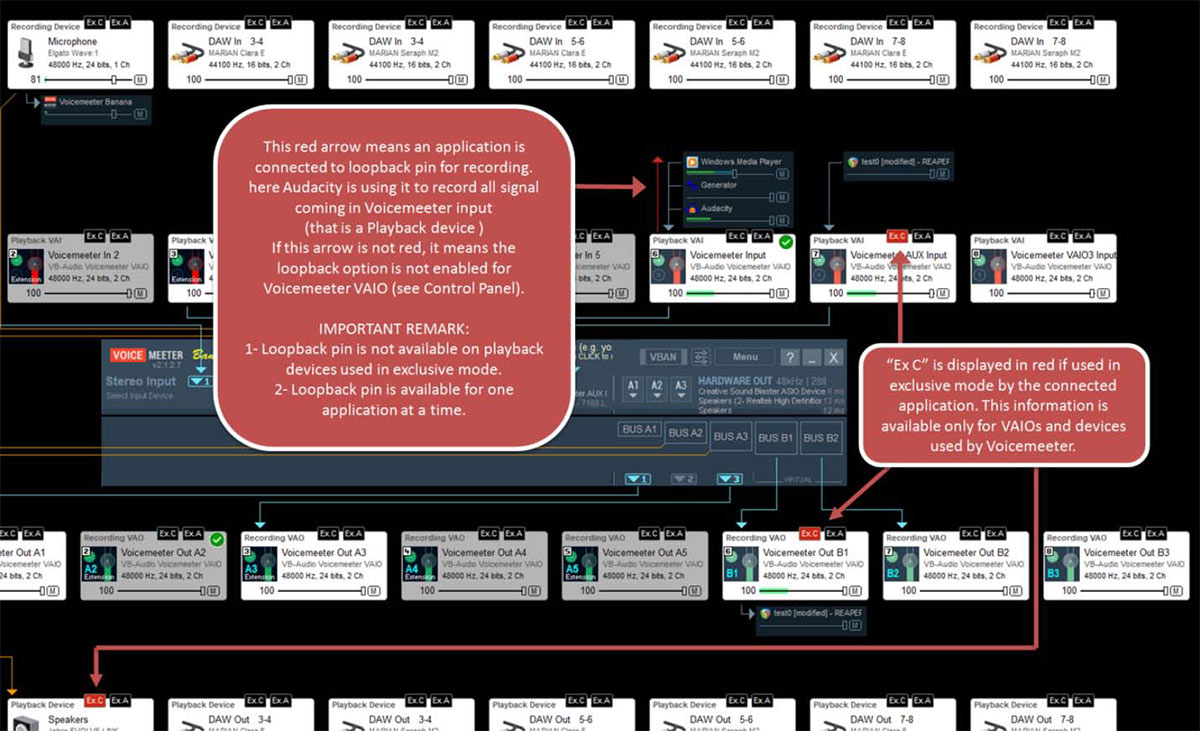
(having no impact on load, but could not be read as XML file). - WINDOWS AUDIO MAP is a new window showing all Windows audio path and settings around Voicemeeter. This is made to help user to understand all windows audio routing as well as to help online support to see the entire audio context in a single view. All Volume sliders and Mute buttons can be set by CTRL+Click.
- INTELLIPAN: now show the state of the possible 3 panels as small led (grey or red) to indicate if the Color panel, the Modulation panel or the 3D panel are used.
- BUS MODE: 2 new BUS modes are implemented: Left Only and Right Only. New instructions:Code: Select all
Bus[i].mode.LeftOnly = 1 ;
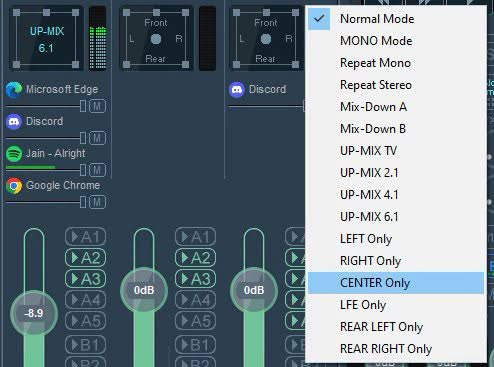
Bus[i].mode.RightOnly = 1 ; - PAN POT 5.1: the cursor is now grey if on neutral position (easier to see if the 5.1 balance has been changed). Right Click open a contextual menu to select a multichannel mode: Normal, Mono, Repeat Mono, Repeat Stereo, MIXDownA, MIXDownB, UPMixTV, UPMix21, UPMix41, UPMix61, Left Only, Right Only, Center Only, LFE Only, Rear Left Only, Rear Right Only. New instructions:
Code: Select all
Strip[i].Mode = 0 to 15; // 0 = Normal
- VOLUME CTRL APP: get icon more precisely (some application could appear with generic icon instead).
- VERBOSE MODE allows generating a log file (in C:\Temp) by using the command –v or by setting the registry DWORD value VerboseMode to 1 (this is made to detect unexpected audio engine restart or unexpected app end).
- MACRO-BUTTONS (1.1.3.4): option “Show Script LED”: Display 3x mini led on top right of every button to show if there is a initial script (yellow), button ON script (green) and button OFF screen (red).
- VBAN REQUEST: IP-Address edit extension, for example: vban.outstream[0].ip = “”; was not working to reset the ip-address of a stream. vban.outstream[0].ip = “LocalHost” was also not working (only IP was strictly accepted).
- VBAN RT-PACKET: subscription management revision, the RT-Packet is sent after the Register request (useful for packet Id 1 sent only on strip parameter changes).
- VAIO DRIVER: revision of the STRICT mode (now version 3.4.1.8). STRICT mode could not work correct for latency above 5ms (STRICT is displayed in yellow).
- APP VOLUME Control: adds mouse wheel and double click to reset to max level. Big View allows scrolling by grabbing the list (to manage more than 11 application volume control – upto 32 max).
- VOICEMEETER STANDARD: Monitoring delay for A2 was not applied (was possibly applied on BUS B instead).
- LIMITER: Algorithm revision to improve audio quality of all brick-wall limiters process.
DeviceChecker app was detecting false error on new VB-CABLE A+B drivers due to driver name change. Now it’s corrected, Device Checker will not detect error anymore with new VB-CABLE A+B.
NEW
The Windows Audio Map
Full Visibility of the Audio System
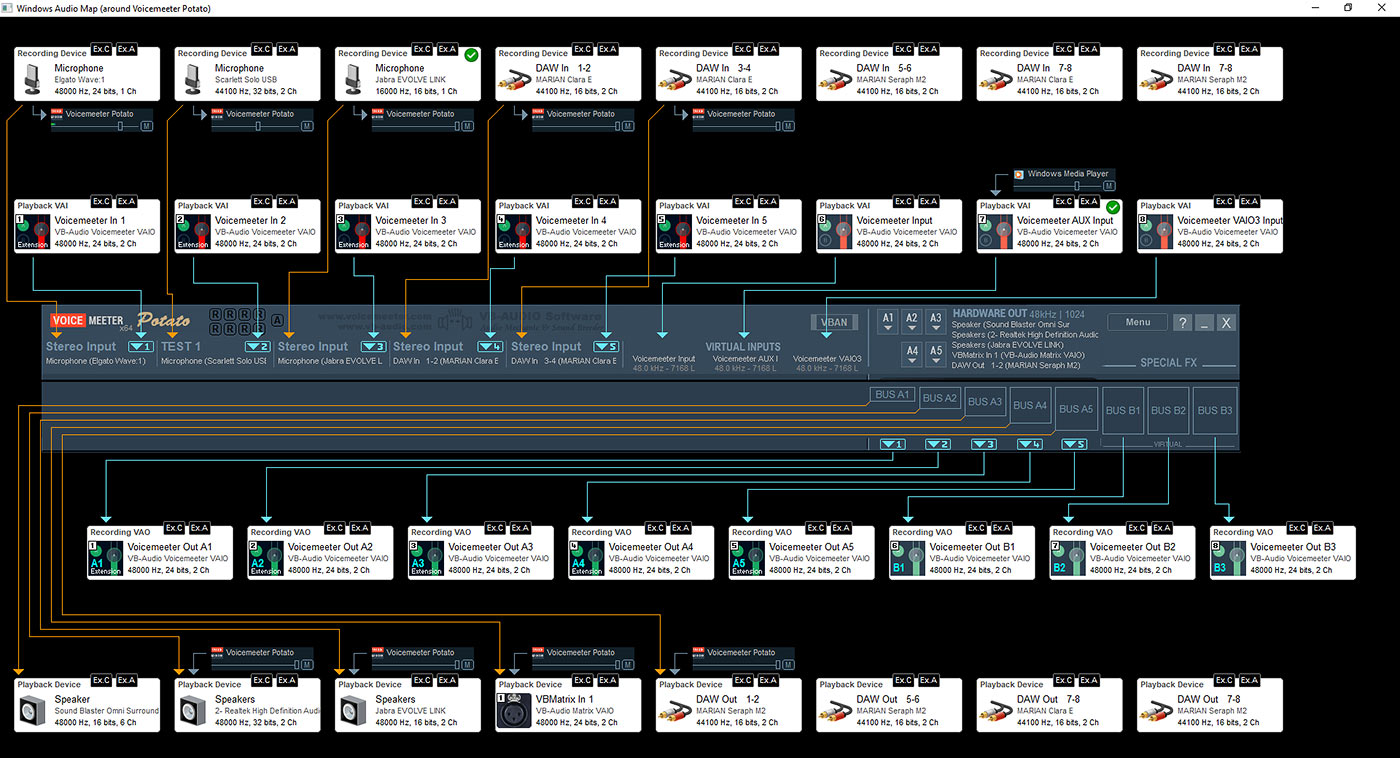
The highlight of the September 2026 update is the Windows Audio Map, a new visual interface. The Map displays:
- All Windows audio devices and endpoints
- Their formats, modes, and active parameters
- Their routing paths toward Voicemeeter
- Their interactions with VAIO, AUX, and physical I/O
- Their current state (active, idle, exclusive, muted, etc.)
This map gives users – for the first time – a complete, real-time overview of all Windows audio, making it easier to diagnose issues, optimize routing, and understand how Voicemeeter integrates with the OS.
With the new Audio Map Voicemeeter is not just a virtual soundcard and a mixer, but a full Windows audio management console.
Additional information managed by Voicemeeter
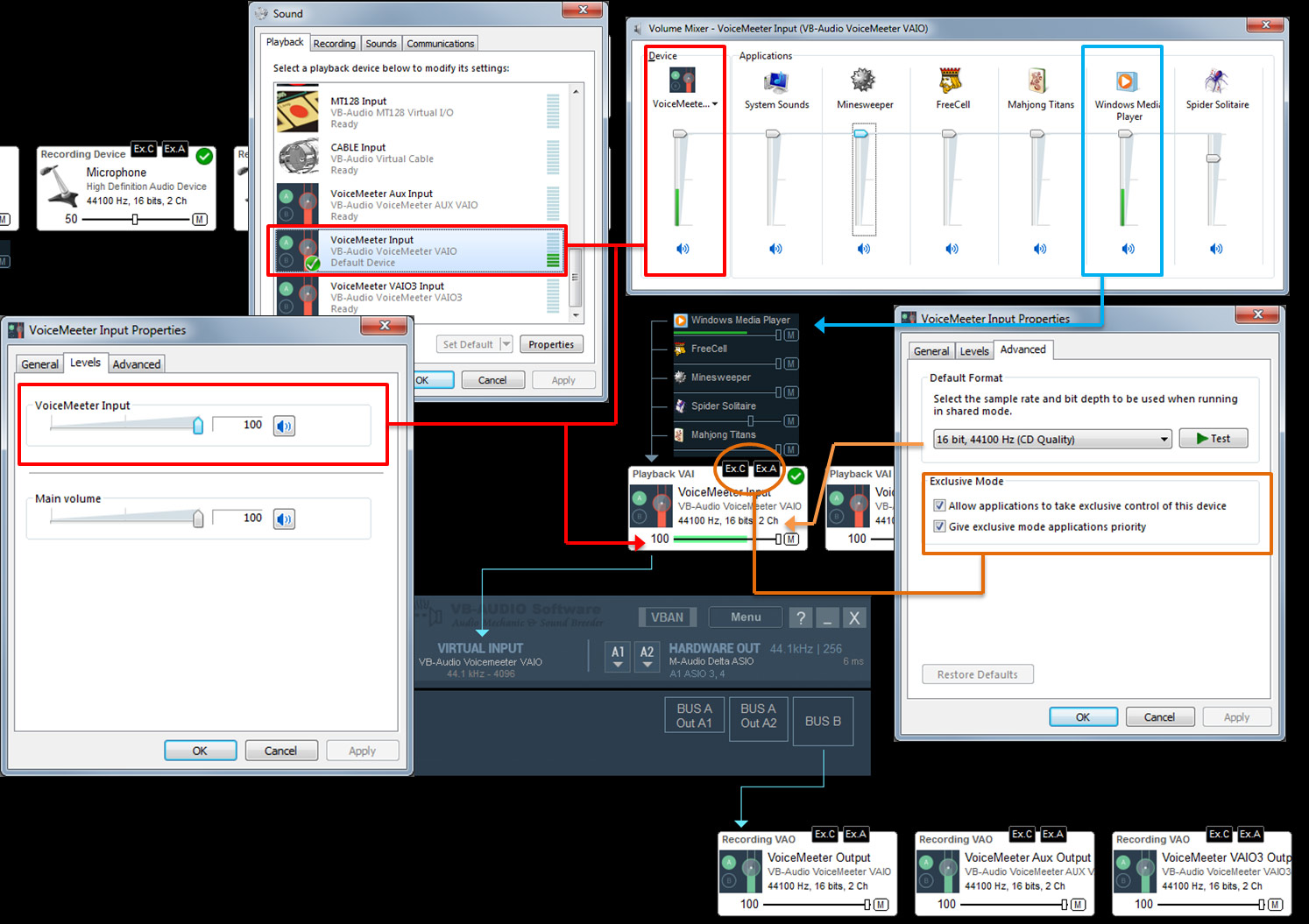
Loopback and exclusive use is not given by Windows, but Voicemeeter knows if their virtual input is used with a loopback stream (represented by a red arrow) and if it uses output device in exclusive mode (“Ex C” shown in red). Voicemeeter also knows if their VAIO are used in exclusive mode.
Loopback streaming is the capability of an application to capture audio from a playback device (instead of a recording device). OBS, Audacity and other capture applications can propose to get audio from a playback device. In Windows Audio Map we can see if an application is connected through this loopback pin.
REM: VAIO Loopback option is enabled by default in Voicemeeter.
Your Audio is save.
Green & Yellow Limiter
The new Limiter has also been implemented in the Tape Recorder (to guarantee recording without peak noise).
Both new Limiters are now also available on every BUS. It works identical to the channel strips: click on the peak meter to drag it to wanted value (0 dB to -20 dB). CTRL + Click to switch from Yellow to the Green Limiter.
Simple, Efficient, and Engineered Like Firmware
The VBAN protocol update
VBAN’s architecture reflects this philosophy. Where other audio-over-IP systems rely on complex negotiation layers, dynamic graph management, or heavyweight codecs, VBAN uses a minimal, single packet structure that behaves like a hardware protocol transported over UDP.
Every VBAN stream – AUDIO, TEXT, MIDI, and now FRAME (video) – follows a fixed, transparent format that developers can understand in minutes and implement in hours.
With the new VBAN-Frame protocol, Voicemeeter can now capture screen and send it to VBAN-Screen application through network for screen mirroring or screen sharing over local network infrastructures.
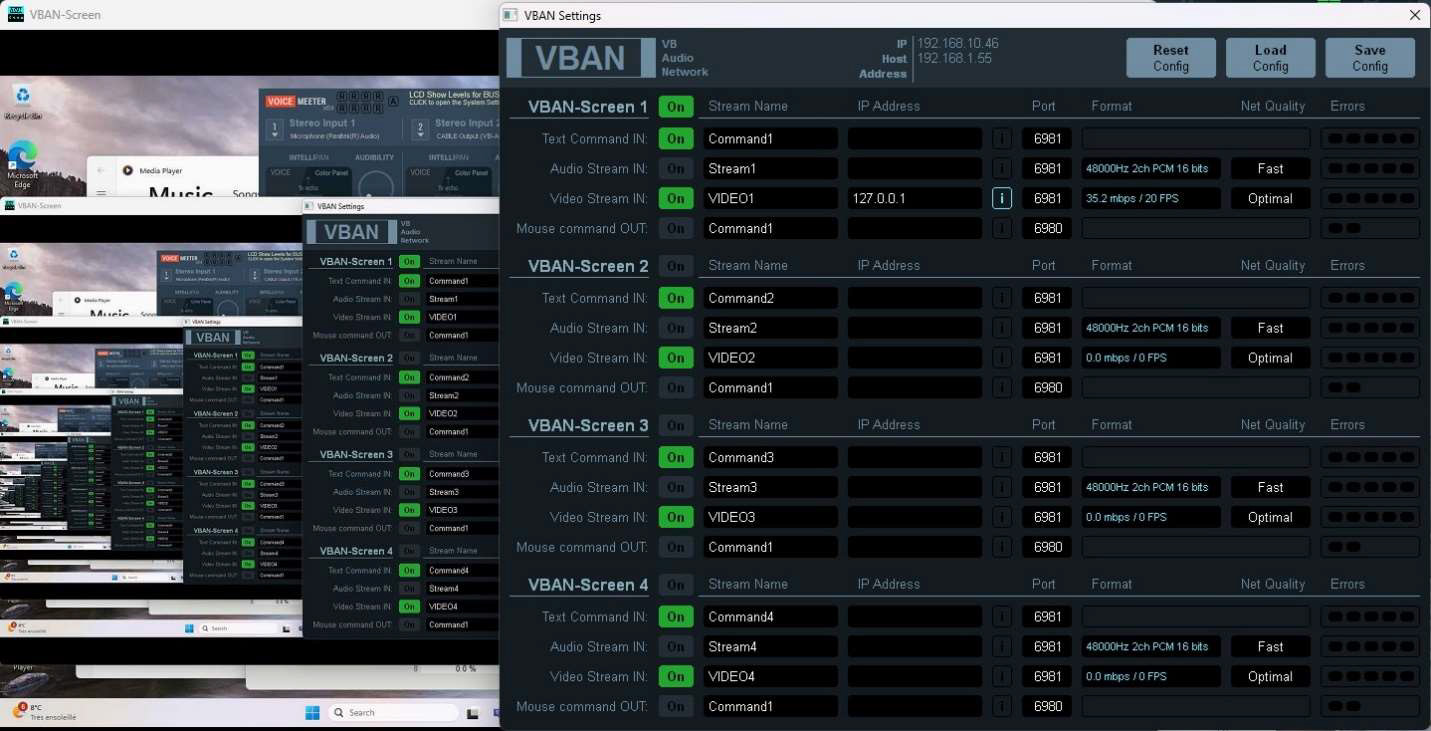

VB-Audio Screen (VBAN-Screen) is a standalone Windows app that displays up to four video streams, often screen captures, sent via the VBAN protocol, allowing users to monitor content like game footage or other computer activity alongside audio.
The app is functioning as a visual dashboard for VB-Audio Matrix or MacroButtons setups. It uses VBAN-Frame for video and VBAN-TEXT for drawing commands (lines, shapes, text), creating an interactive display for audio/visual setups, ideal for streamers or complex audio routing.
Potato shows all
Display the Sub mix levels in the channel strip
This way the “layer” of different gains – which can be fully shown in the Streamer View – is visible directly in the channel strip.
How to activate:
Use Right Mouse Click to swap between the level view or the BUS assignment view (A1, A2 … B1).
Use CTRL+Wheel to change the sub mix value (layer gain).
Surround Modes
Now available on the Virtual Inputs
Banana & Potato provide the multichannel mode also on the Virtual Inputs.
You can set your music in 6.1 on first input, keep the second input in normal mode, for example for 5.1 game or 7.1 movies and set the third virtual input in another mode if needed.
Double click to reset to normal mode neutral pan pot position
More VB Apps for your daily audio life
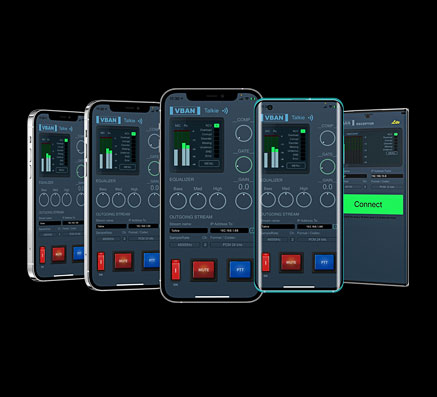
VBAN TALKIE “Cherrie”
VOICEMEETER-powered
HIGH-QUALITY INTERCOM
for your mobile devices
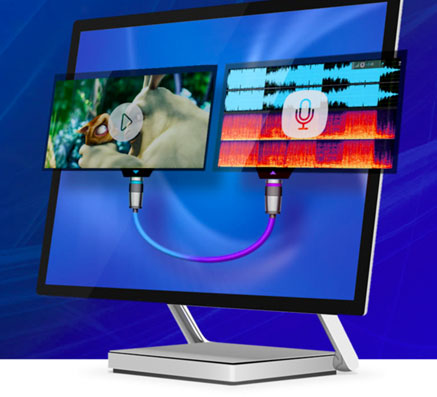
Virtual Audio Cable
Several Device drivers, which allow to route audio from every app to any app. E.g. audio player or Game sound to Skype/Zoom inputs.
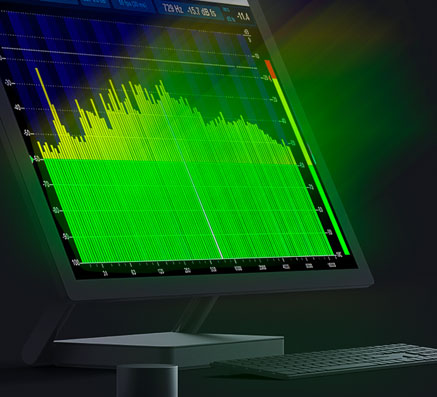
Spectralissime
High Precision 240-Band Spectrum Analyzer for Windows with professional features.
VBAN SUPPORT INCLUDED.